OBS佔用多少硬碟空間?

OBS Studio is one of the most popular tools for live streaming, screen recording, and content creation. Whether you’re a gamer, educator, or content creator, OBS provides a free, powerful, and versatile solution. However, one of the most common questions among new users is: how much drive space does OBS actually take up? The answer is both simple and nuanced because OBS’s impact on your storage depends on several factors. In this article, we’ll explore how much drive space will OBS take up and provide practical tips to manage disk space efficiently.

how much drive space does obs take up​

1. How Much Drive Space Does OBS Take Up?

1.1 OBS Studio Installation Size

First, it’s important to understand that the OBS software itself is lightweight. The core installation is relatively small compared to many modern software applications. Here’s a breakdown by platform:

  • 視窗: ~120–150 MB
  • macOS: ~200 MB
  • Linux: ~90–120 MB

This means that just installing OBS Studio will not consume significant storage. Even with default settings, the program itself takes less than a gigabyte. For comparison, modern video games or editing software can take tens or even hundreds of gigabytes, so OBS is very efficient in this regard.

Key Points :

  • The installation is small, so storage concerns mostly come from recorded files.
  • OBS Studio is free, and updates rarely increase the installation size dramatically.

1.2 Recording Space Requirements

While OBS itself doesn’t require much space, recorded videos are where storage usage skyrockets. The file size of your recordings depends on several factors:

a) Resolution

  • 720p HD: Smaller files, roughly 1–2 GB per hour depending on bitrate.
  • 1080p Full HD: Medium files, roughly 3–6 GB per hour.
  • 1440p or 4K: Large files, potentially 10–40+ GB per hour.

Higher resolutions increase both the visual quality and the file size significantly.

b) Frame Rate

  • 30 FPS: Standard for lectures, casual gaming, or presentations; smaller file sizes.
  • 60 FPS or higher: Preferred for high-motion content like esports or action videos; increases file size significantly.

A 1080p 60 FPS recording is usually much larger than a 1080p 30 FPS recording of the same length.

c) Bitrate and Compression

The bitrate you set in OBS directly affects how much data gets written to disk:

  • Low Quality (3–5 Mbps): Small files, lower visual clarity.
  • Medium Quality (8–15 Mbps): Balanced quality and size, good for YouTube uploads.
  • High Quality (20–50 Mbps or more): Large files with excellent detail.

The more bitrate you use, the larger the file — but the image quality increases too.

d) Recording Format

OBS supports several recording formats:

  • MP4: Widely compatible but risky if OBS crashes mid‑recording.
  • MKV: Safe default; you can remux to MP4 later.
  • FLV / MOV / TS: Options for specialized workflows.

The choice of format can slightly affect file size, but resolution, FPS, and bitrate are far more influential.

1.3 Streaming vs. Recording

Another consideration is whether you are streaming live 或者 recording locally :

  • Streaming only: OBS doesn’t store live streams locally unless you enable recording — so the storage impact is minimal.
  • Recording locally: This is the main source of storage usage. Even a single hour of high‑quality 1080p video can occupy 5–10+ GB of space.

If storage is limited, plan your recording strategy carefully based on your needs.

1.4 Plugins, Assets, and Scene Collections

Beyond the base software and recorded videos, OBS allows you to add:

  • Plugins: Often 5–50 MB each (e.g., for effects or hardware integration).
  • Transitions/Themes: Animated assets can add tens to hundreds of MB.
  • Scene Collections: Multiple scene setups with custom graphics can increase storage usage.

These items don’t compare to recorded video in terms of size, but they can add up if you use a lot of custom assets.

1.5 Temporary Files and Cache

OBS occasionally generates temporary files during recordings:

  • Cache files: Usually small — a few hundred MB at most.
  • Crash recovery files: If OBS crashes, these can take extra space temporarily.

Regularly cleaning your recording folders and cache can help keep things tidy.

1.6 Typical Drive Space Usage

Here’s a quick overview of typical storage usage associated with OBS:

設想 Estimated Space Usage
OBS installed only 150–200 MB
Light recording (1–2 hours of 720p/30 FPS) 2–4 GB
Moderate recording (1–2 hours of 1080p/60 FPS) 5–12 GB
Heavy recording (1 hour of 4K/60 FPS) 20–40+ GB
Plugins & Scene Assets 50 MB–500 MB

1.7 Tips to Save Disk Space with OBS

Here are practical ways to reduce storage usage:

  • Reduce resolution and frame rate where appropriate.
  • Lower bitrate while maintaining acceptable quality.
  • Use efficient codecs like H.265/HEVC where compatible.
  • Clean up old recordings regularly.
  • Use MKV as a default format to protect against data loss.
  • Store recordings on external drives if internal space is limited.

2. Bonus: Try Swyshare Recordit – A Simpler OBS Alternative

If OBS feels too complex or storage‑intensive for your needs, you might consider a simpler screen recorder like Swyshare Recordit 。

Swyshare Recordit is a lightweight screen recording tool designed for simplicity and ease of use. It’s ideal for quick screen recordings, tutorials, and basic video capture without the complexity of OBS.

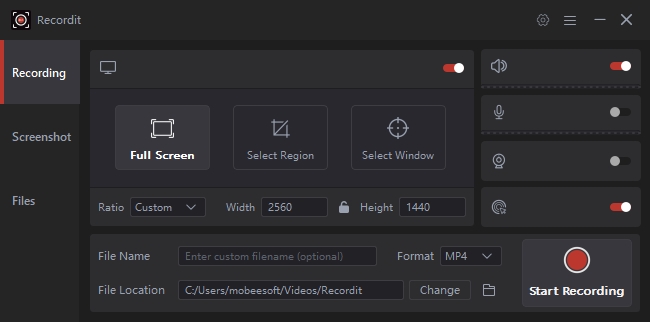
主要特點 Recordit :

  • Begin recording immediately without extensive setup.
  • High‑quality (HD and 4K) video capture.
  • Save recordings in MP4, AVI, FLV, or GIF formats.
  • System and mic audio can be recorded simultaneously.
  • Built‑in snapshot tools and basic editing support.
  • Smaller installer and minimal impact on system resources compared to OBS.
recordit 介面

How It Compares to OBS:

  • 使用方便: Recordit focuses on simplicity — no complicated scenes, sources, or encoding presets.
  • Storage Needs: Like OBS, its core installation is small, but total disk usage depends on the recordings you make. Like OBS, higher resolution and longer recordings will take up more space.
  • 最適合: Quick tutorials, lectures, meetings, or casual screen capture work without a steep learning curve.
  • Not Ideal For: Advanced streaming, complex scene compositions, or professional multi‑source recordings.

三、結論

OBS Studio itself is very small — generally hundreds of megabytes — but your actual storage usage will mainly depend on your recordings. Higher resolution, higher frame rates, and higher bitrates all increase file sizes significantly. Understanding your needs and recording settings helps you plan your storage effectively. If OBS feels too complex or heavy for your workflow, a lighter alternative like Swyshare Recordit might offer the simplest path to quick, high‑quality recordings without the overhead of more advanced software.

recordit_dl_buttons}

發表評論

您的電子郵件地址不會被公開。 必填的地方已做標記 *