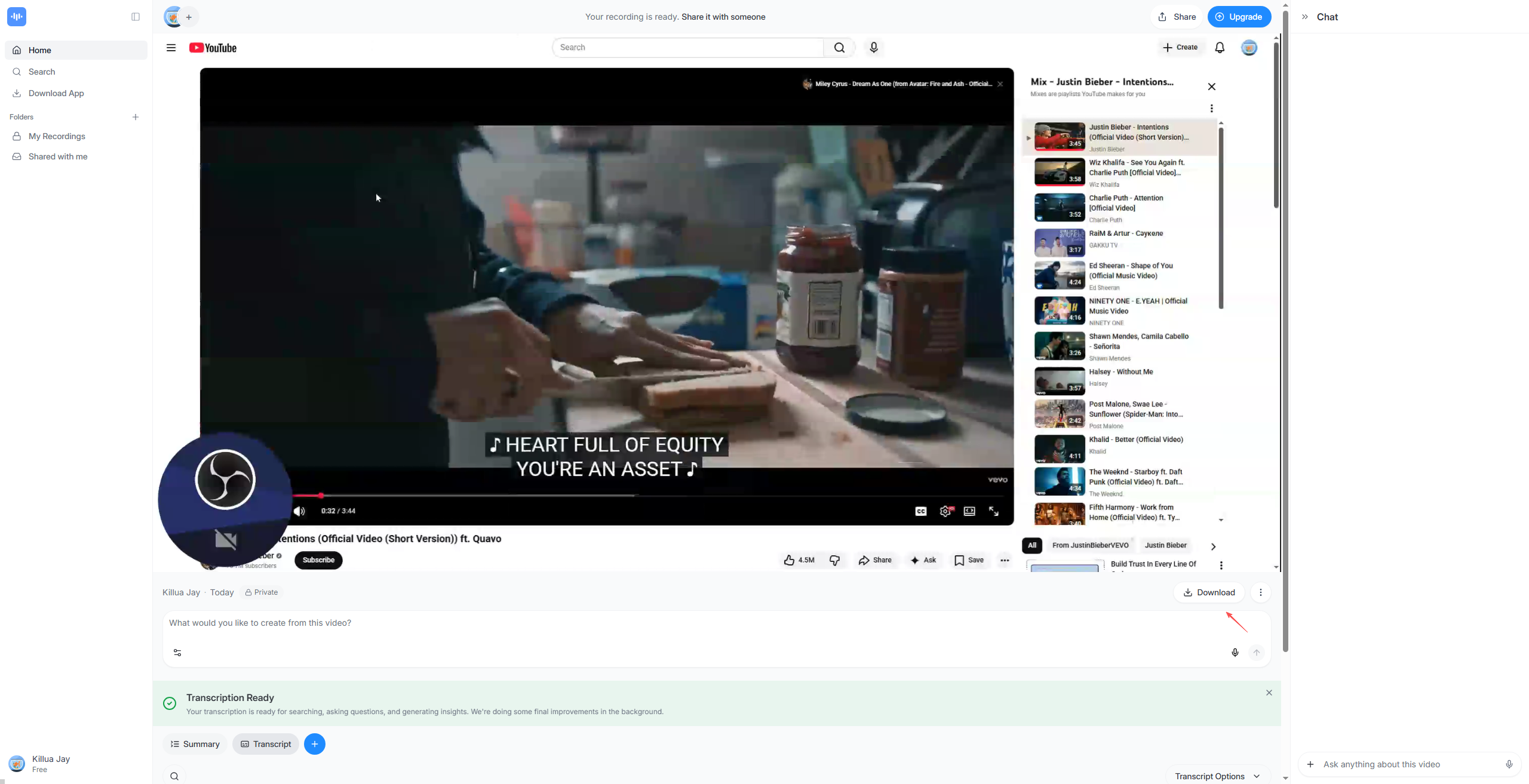
ScreenApp 概覽:您需要了解的一切

Screen recording has become an essential tool for communication, education, and content creation in the digital era. From online classes and business presentations to software tutorials and customer support guides, screen recorders help turn complex ideas into clear visual explanations. ScreenApp is a popular browser-based screen recording solution that appeals to users who want a fast and simple way to capture their screens without installing software.

In this article, we’ll provide a complete overview of ScreenApp, including what it is, how it works, its key features, common use cases, and its pros and cons.

1. What Is ScreenApp?

ScreenApp is a web-based screen recording tool that allows users to record their screens directly from a browser such as Chrome or Edge. ScreenApp is valued for its simple interface and convenient access. Users can start recording in just a few clicks, without downloading or installing any desktop software.

ScreenApp focuses on essential screen recording functionality rather than advanced production tools. Its main features include:

  • Browser-based screen recording with no installation
  • Record full screen, application windows, or browser tabs
  • Microphone and system audio recording
  • Cloud storage for recorded videos
  • Instant playback and shareable links
  • Basic trimming and video management tools

2. How ScreenApp Works?

ScreenApp uses modern browser APIs to capture screen activity. The recording process is simple and beginner-friendly:

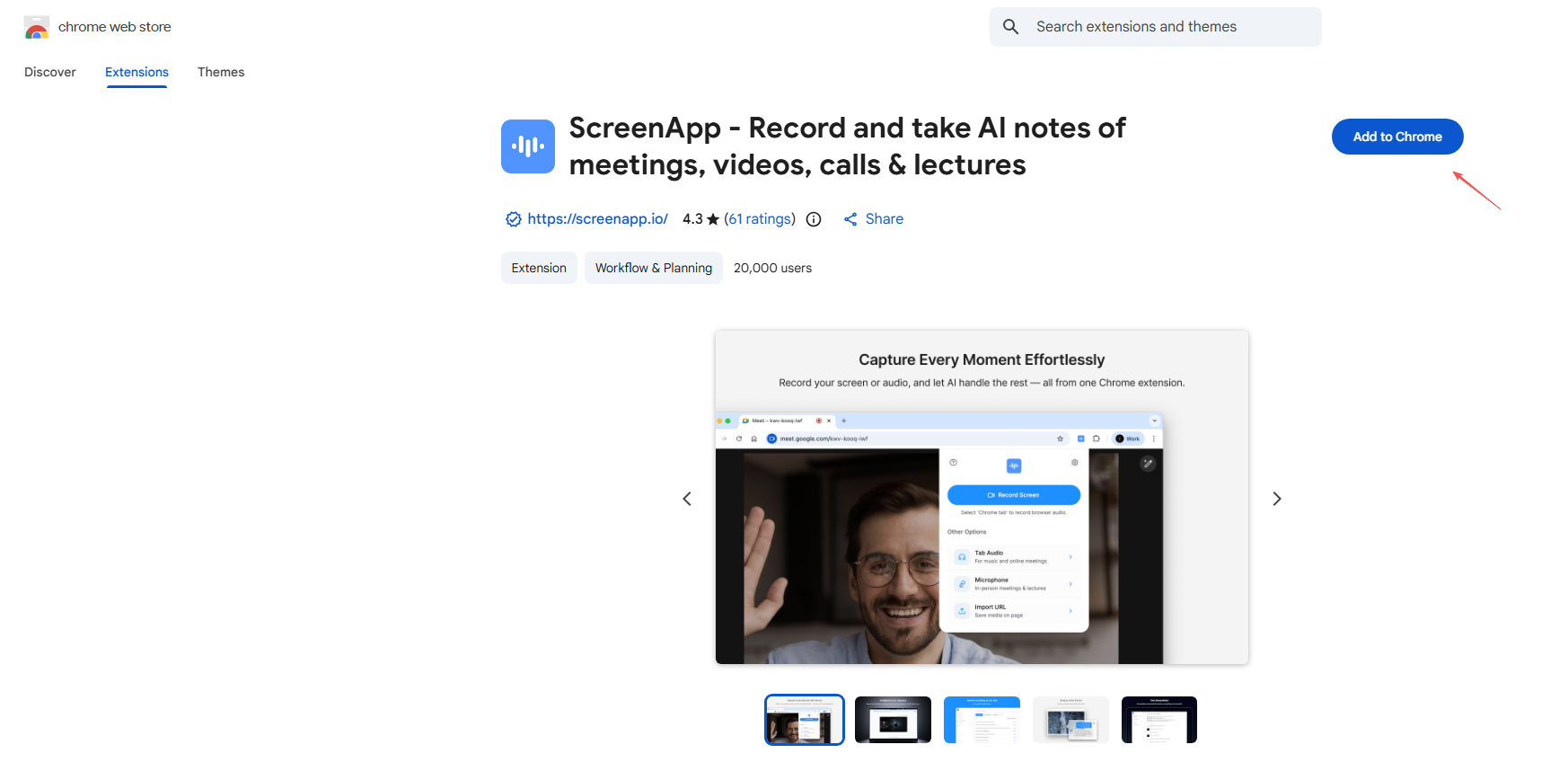
Step 1: Go to screenapp.io to install the ScreenApp extension to your Chrome.

install screenapp

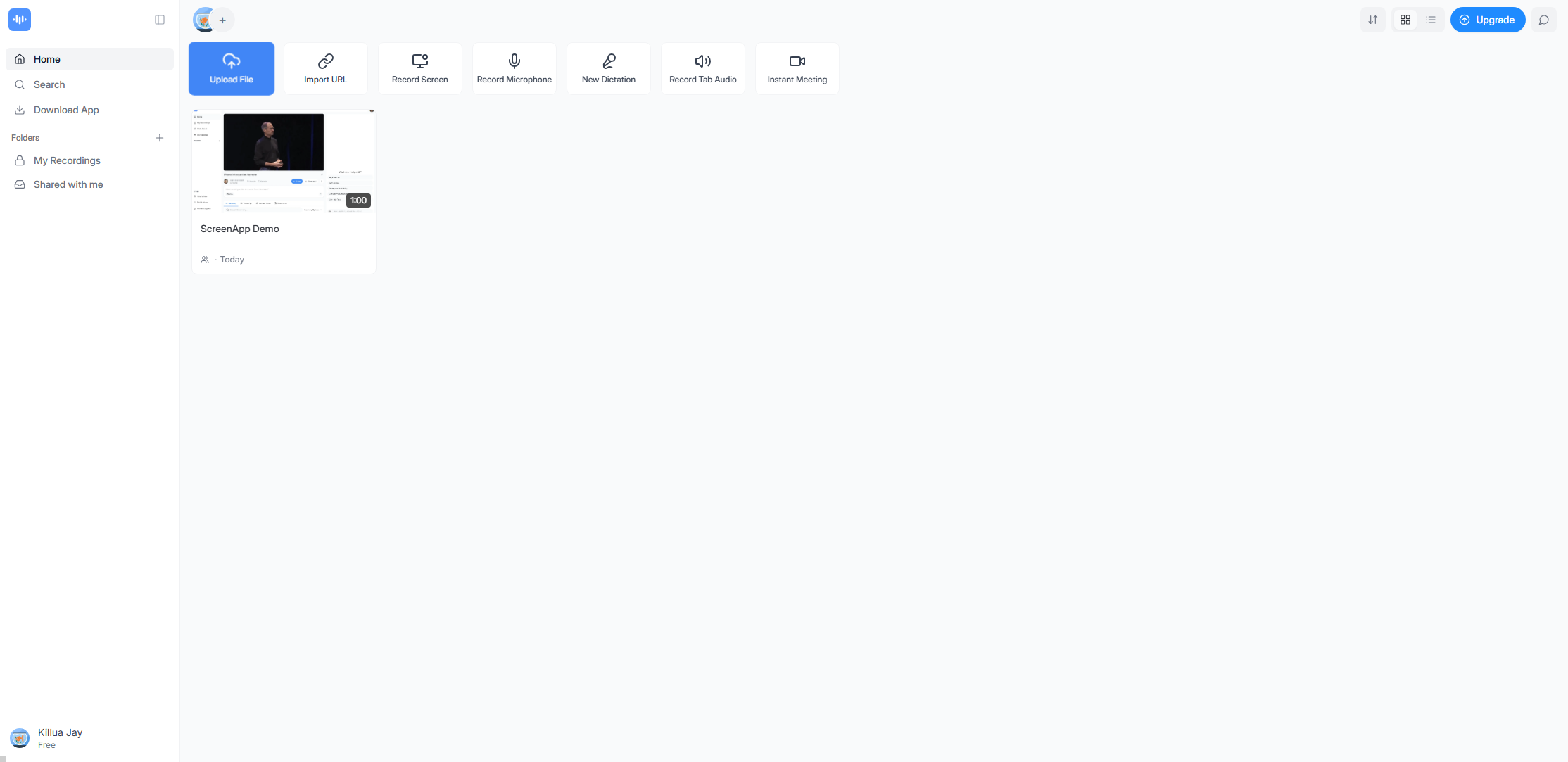
Step 2: Open ScreenApp, choose the recording mode (record screen, microphone, tab audio and more)

screenapp choose record mode

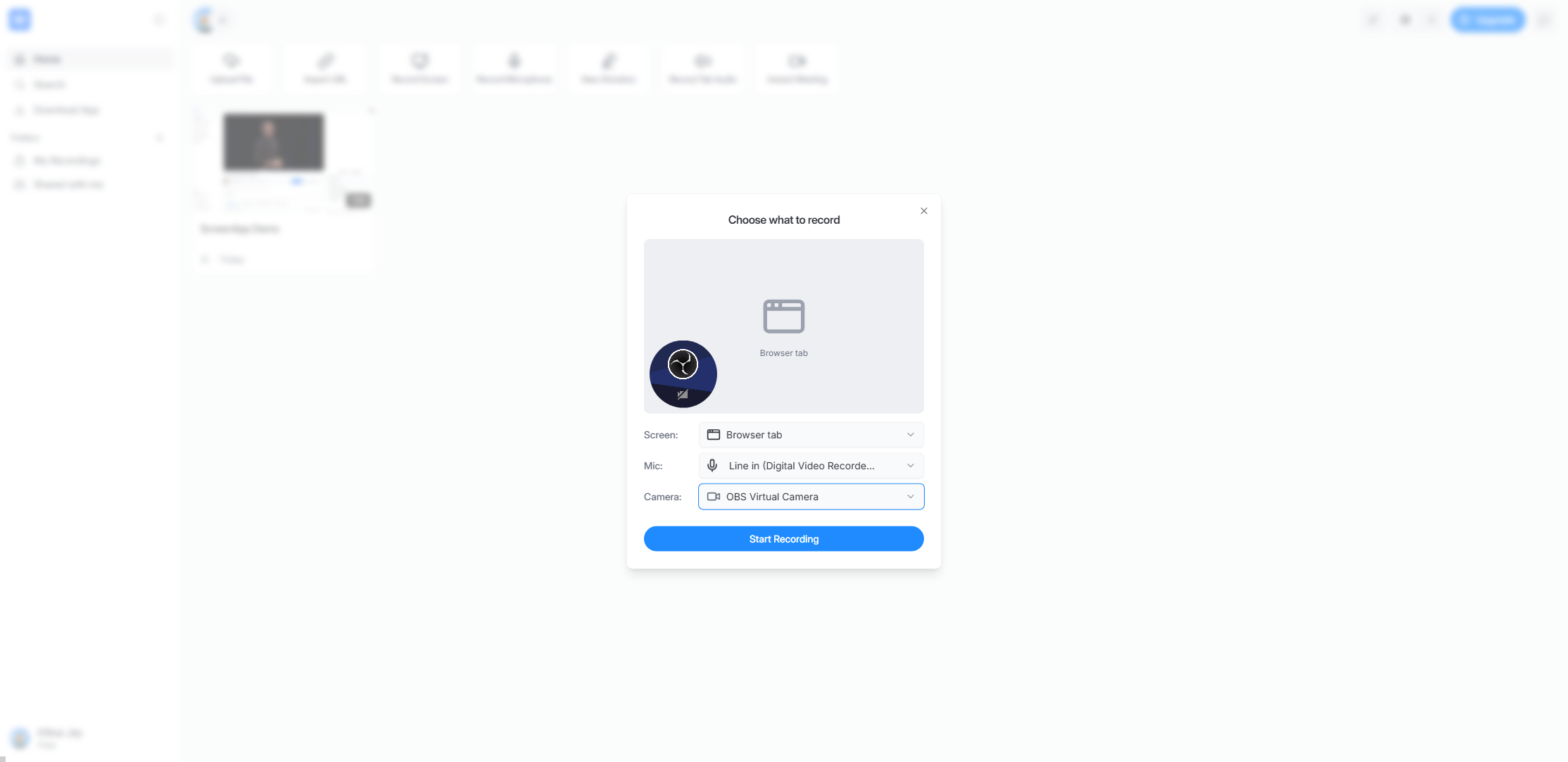
Step 3: Set record area, microphone and camera, then start recording your screen activity.

screenapp set record area microphone and camera

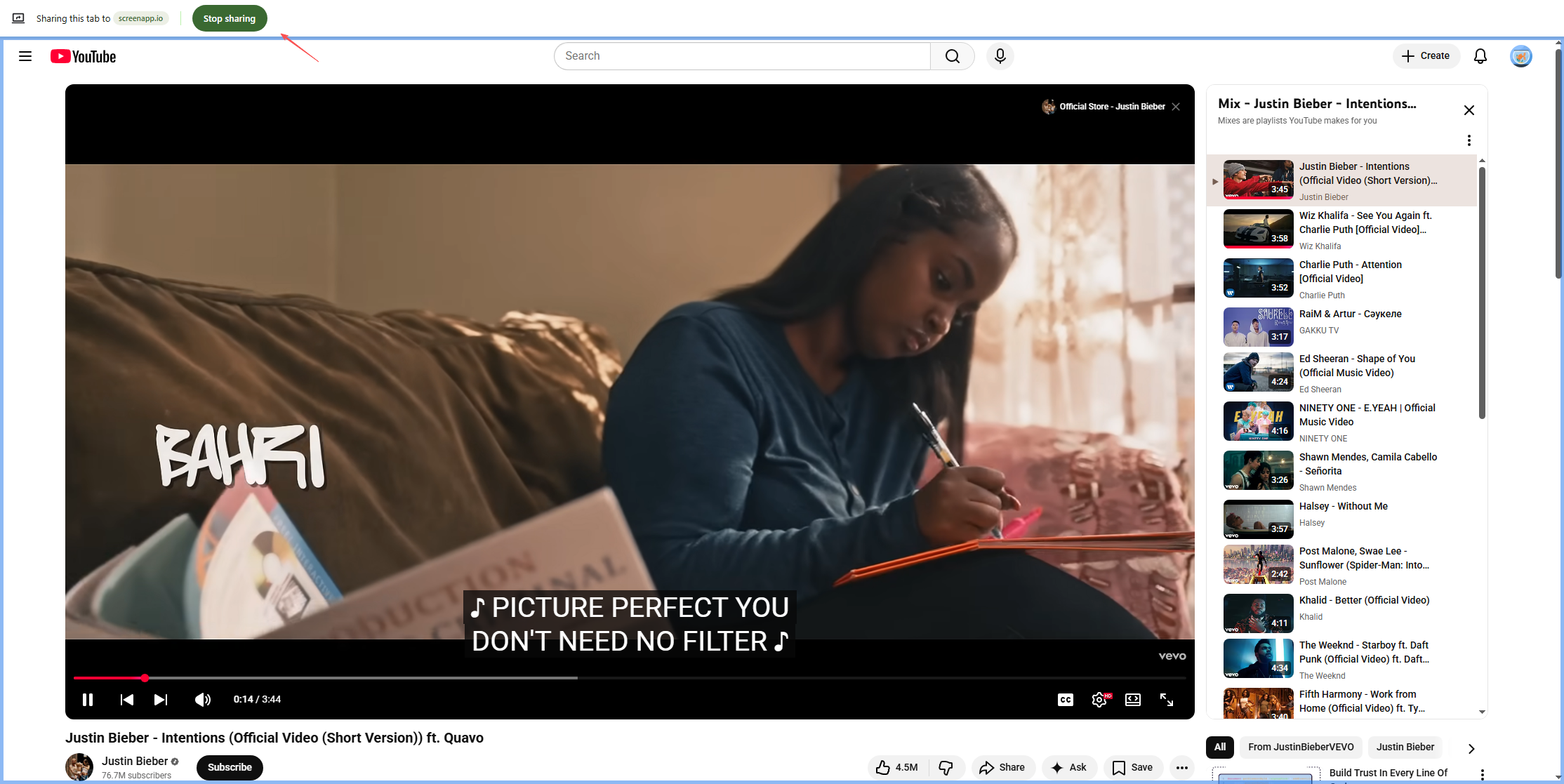
Step 4: Stop the sharing when finished, then return the ScreenApp and wait the file to be loaded.

screenapp stop sharing

Step 5: Preview, save, download, or share the video via a link.

screenapp download recording

3. Common Use Cases for ScreenApp

ScreenApp is designed for fast and simple recording tasks. Common use cases include:

  • Online Education

Teachers and instructors use ScreenApp to record lectures, presentations, and step-by-step tutorials for students.

  • Remote Work and Collaboration

Remote teams rely on screen recordings to explain tasks, share updates, or provide feedback asynchronously, reducing the need for meetings.

  • Product Demos and Walkthroughs

Sales and marketing teams use ScreenApp to record product demonstrations and feature overviews for potential customers.

  • 內容創作

Creators and bloggers use ScreenApp for simple how-to videos, software overviews, and explainer content.

  • 客戶支援

Support teams create visual guides and troubleshooting videos that help users resolve issues more efficiently.

4. Pros and Cons of ScreenApp

優點:

  • No software installation required
  • Easy to use, even for beginners
  • Cross-platform compatibility via browsers
  • Fast sharing with cloud-based links
  • Ideal for short, simple recordings

缺點:

  • Limited advanced editing features
  • Performance depends on browser and internet connection
  • Recording limits on free plans
  • Not ideal for long or high-quality recordings
  • It takes long time to load file after recording

5. Try the Powerful Alternative to ScreenApp – Swyshare Recordit

For users who need more power, stability, and professional-level recording quality, Swyshare Recordit is a strong alternative to ScreenApp. Unlike browser-based tools, Recordit is a desktop screen recorder designed to deliver smooth performance, high-definition output, and advanced recording controls.

主要特點 Swyshare Recordit :

  • High-quality HD and Full HD screen recording
  • Record full screen, selected region, or specific windows
  • Simultaneous system audio and microphone recording
  • Webcam recording and picture-in-picture mode
  • Annotation and highlighting tools during recording
  • Instant replay and schedule recording
  • Built-in editor to add logo/background and resize video
  • Export recordings directly in local to ensure privacy

如何使用 Swyshare Recordit to record screen activity:

  • 下載並安裝 Swyshare Recordit on Windows or macOS
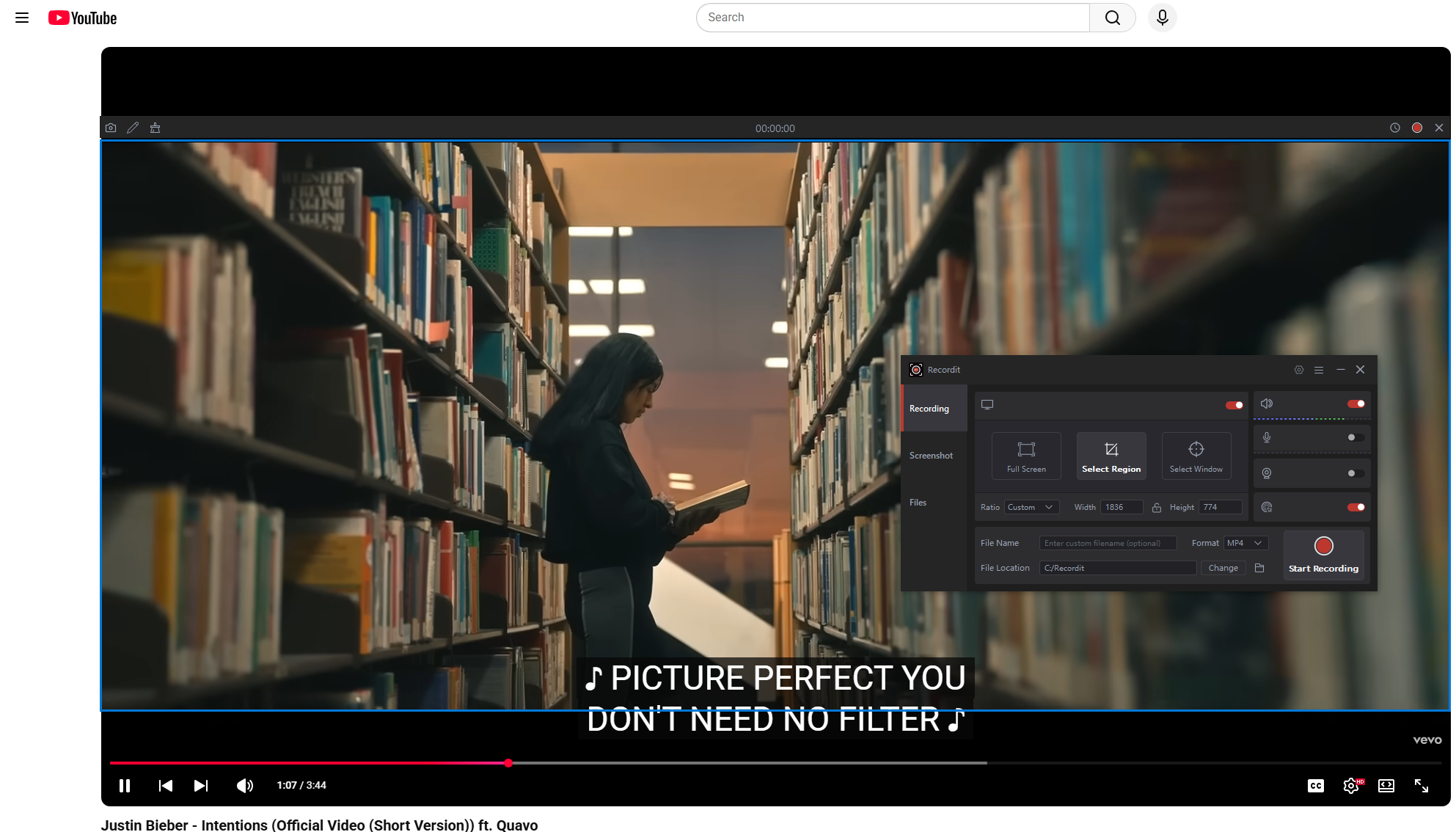
  • Launch the program and choose a recording mode (screen, region, or window), select audio sources (system sound, microphone, or both), enable webcam and set output type or resolution if needed.
  • Click the record button to start recording; Stop recording when finished.
  • Recordit will auto save the recorded video in the “Files” tab, allowing you to open and watch it offline.
recordit records youtube mv

6. Comparison: ScreenApp vs Swyshare Recordit

特徵 ScreenApp Swyshare Recordit
平台 Web-based Desktop (Windows & macOS)
Installation Not required Required
錄音品質 標準 High-definition
Internet Dependency 高的 沒有任何
音訊控制 基本的 先進的
Webcam Support Limited or none Full support
Editing & Annotations Basic trimming Advenced built-in video editor
最適合 Quick, simple recordings Professional and long recordings

7. 結論

ScreenApp is a practical solution for users who want a fast and easy way to record their screen directly from a browser. It works well for short videos, quick explanations, and casual use. However, its limitations in performance, customization, and recording quality can become apparent as your needs grow.

For educators, professionals, creators, and businesses that require stable performance, higher-quality output, and greater control, Swyshare Recordit is the better choice. Its desktop-based design eliminates browser limitations, while its advanced features make it suitable for everything from tutorials and presentations to product demos and training videos.

If you’re ready to move beyond basic browser-based recording and want a powerful, reliable, and professional screen recorder, Swyshare Recordit 強烈推薦。

發表評論

您的電子郵件地址不會被公開。 必填的地方已做標記 *