Welcome to the guide for CleanBee! CleanBee finds the caches, temporary files, logs and leftovers that fill up your disk, shows you what they are, and cleans the ones you pick. Everything it cleans goes to the Recycle Bin or the Trash, so you can get it back. On a Mac it also shows what is inside “System Data” and helps you reclaim it. This guide walks you through installing CleanBee, cleaning your disk, finding large files, the settings, and upgrading to CleanBee Pro.
1. Download and Install CleanBee
1.1 Download CleanBee
CleanBee runs on Windows 11 and Windows 10 (64-bit), and on macOS 12 Monterey or later, on both Apple silicon and Intel Macs. Click the 免費下載 button for your computer below.
1.2 Install on Windows
- 打開你的 下載 資料夾並雙擊 cleanbee.exe 。
- 按照安裝程序的指示操作。只需不到一分鐘,即可將 CleanBee 新增至「開始」功能表。
- Open CleanBee from the Start menu or the desktop shortcut.
1.3 Install on Mac
- Open the CleanBee disk image from your 下載 folder. The download page picks the right one for your Mac, Apple silicon (M1 or later) or Intel.
- Drag CleanBee onto the 應用領域 資料夾。
- Open CleanBee from Applications or Launchpad.
To measure and clean everything on a Mac, CleanBee needs 完全磁碟訪問 . When it asks, click Open System Settings , turn CleanBee on under Privacy & Security › Full Disk Access , and open CleanBee again. You can skip this: CleanBee still cleans everything it can read, and marks the rest “Needs Full Disk Access”.
2. Run a Smart Scan
CleanBee opens on Smart Scan . Click 掃描 . In a minute or so it shows how much space you can get back, how full your disk is, and the biggest things it found under Top recommendations 。
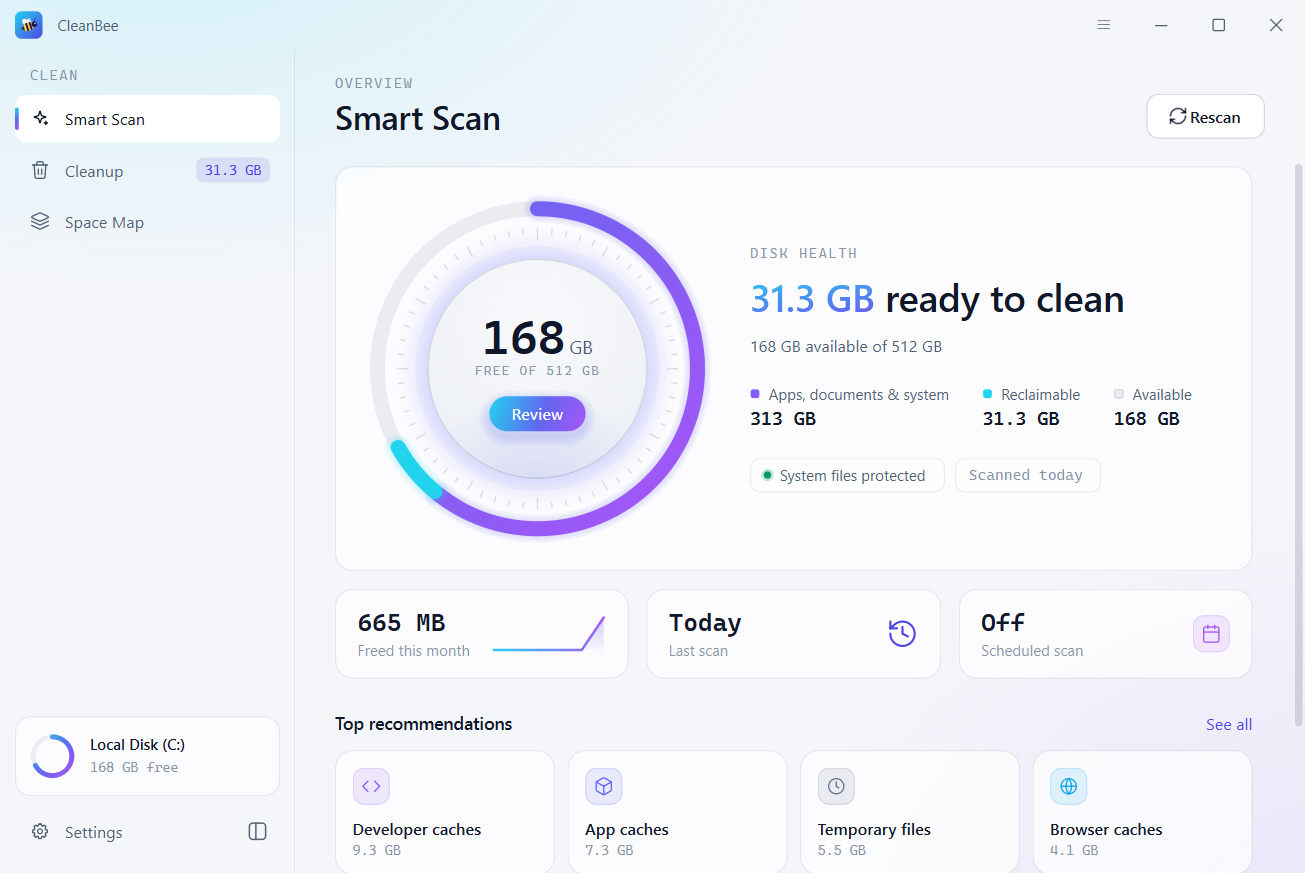
- Disk health : the free space on your disk, what you can reclaim, and what apps, documents and the system use.
- Freed this month , Last scan 和 計劃掃描 : a quick look at how you are doing.
- 審查 或者 See all : open Cleanup to see every category.
Smart Scan never lists your documents, photos or other personal files. It only looks at caches, temporary files, logs and leftovers that apps and your system make again when they need them.
3. Review and Clean
點選 審查 , 或者 Cleanup in the sidebar, to see everything the scan found, sorted into three groups:
- Safe to clean : temporary files, app caches, browser caches, logs and crash reports, and the thumbnail cache (QuickLook cache on a Mac). These are ticked for you.
- Review before cleaning : Windows Update leftovers (old installers on a Mac) and developer caches such as npm, pip and Gradle. They are safe to remove, but you may want to keep them, so they are not ticked.
- Cannot be undone : the Recycle Bin or Trash itself. Emptying it can’t be undone, so CleanBee never ticks it for you.
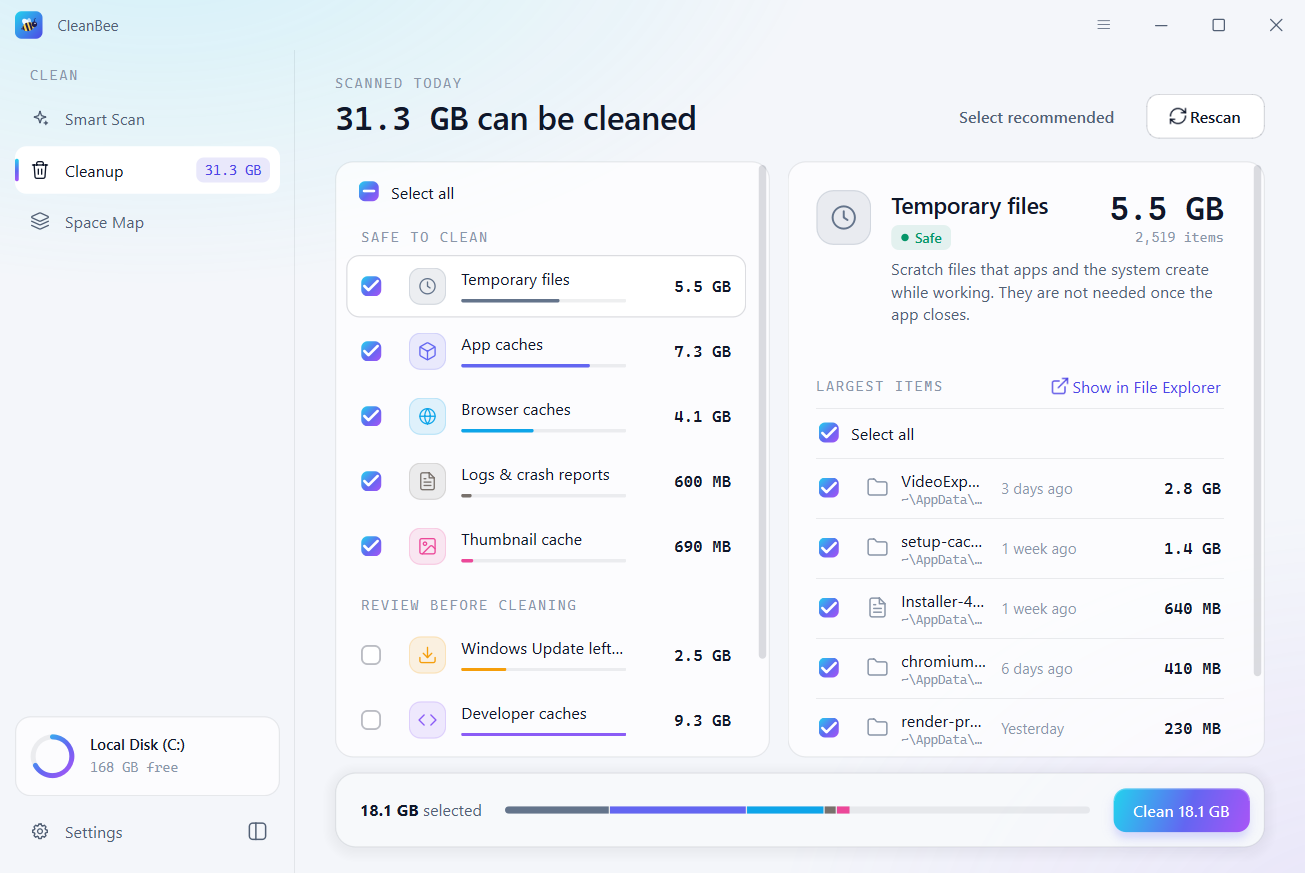
Click a category to see on the right what it is and its largest items. Untick any item you want to keep, use 全選 to tick them all again, and click Show more to list more of them. Show in File Explorer ( Show in Finder on a Mac) opens the folder. Select recommended at the top goes back to CleanBee’s picks.
When you are ready, click 乾淨的 at the bottom, and confirm. A few things CleanBee does to keep you safe:
- Caches of apps that are running are left alone. CleanBee tells you which apps to quit if you want to include them.
- Files that are in use are skipped, and system folders are never touched.
- Password managers, input methods, VPNs and security software are protected: their data is never cleaned.
- On Windows, Windows Update leftovers need administrator rights. Click Restart as admin to include them.
4. After Cleaning
When CleanBee is done it shows how much space you got back, and how much was available before and now.
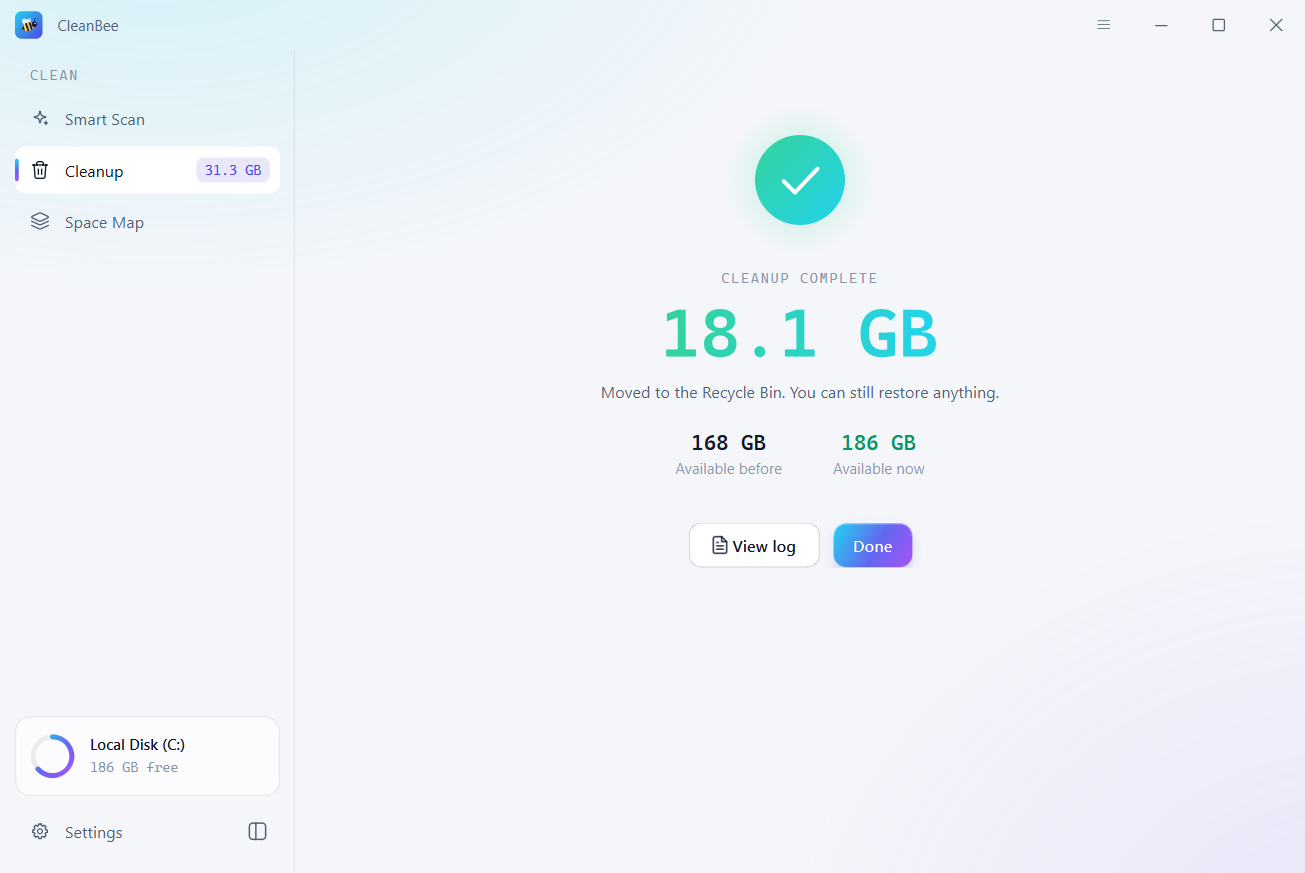
- Everything was moved to the Recycle Bin or the Trash, so you can restore anything from there.
- View log opens a list of everything that was cleaned or skipped, and why.
- 點選 完畢 to go back. The categories you cleaned are gone, and the rest stay for another time.
5. Find Large Files with Space Map
Big downloads, old videos and forgotten backups often take more space than all the caches together. Click Space Map in the sidebar. CleanBee looks through your home folder and shows your largest files as a map: the bigger the tile, the bigger the file.
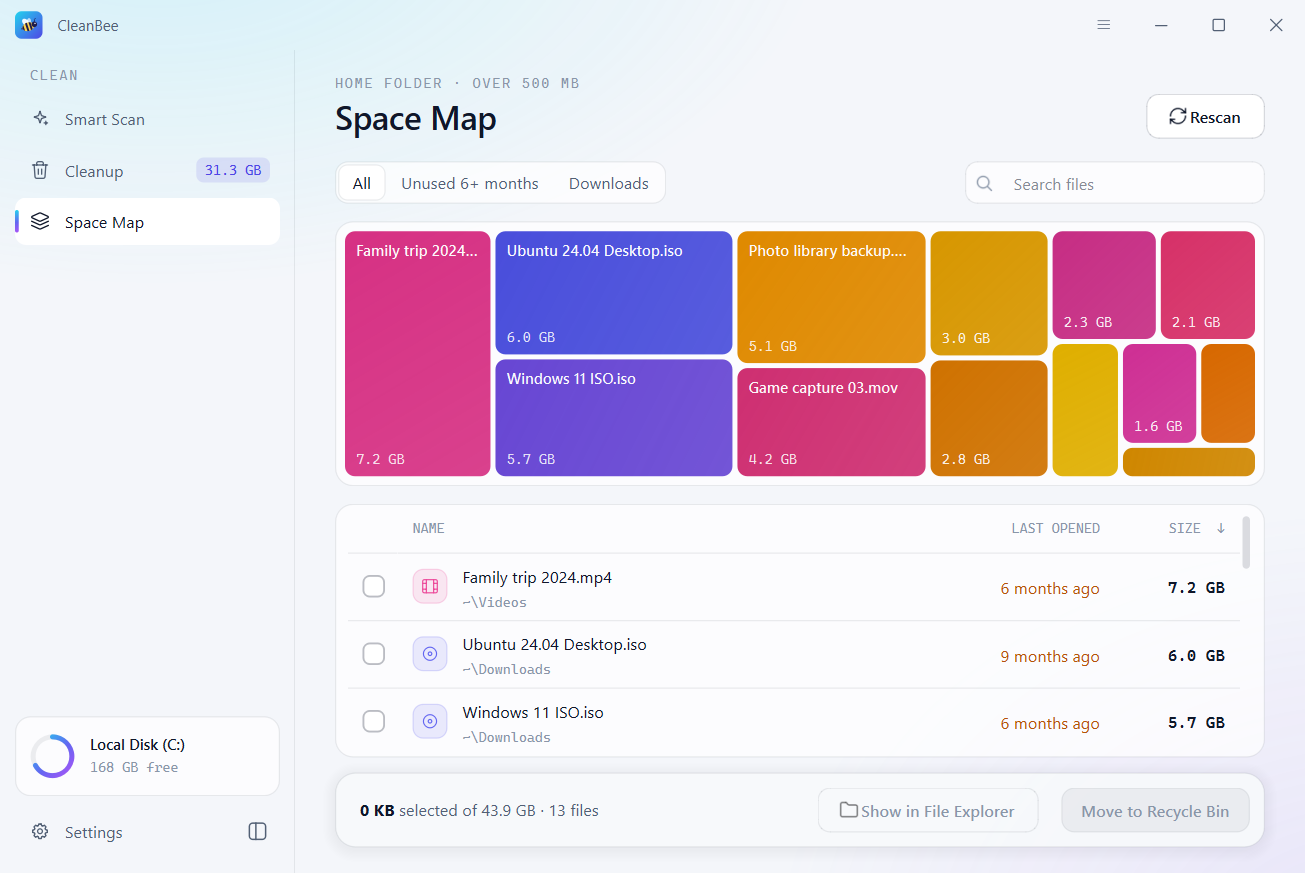
- All 或者 Unused : show every large file, or only the ones you haven’t opened for months.
- Search files : find a file by name.
- Click a tile or a row to select it, and Show in File Explorer (or Finder) to see where it is.
- With CleanBee Pro, select files and click Move to Recycle Bin (or Trash). 撤銷 puts them back.
Space Map only ever moves the files you select. You decide what goes.
6. Reclaim Mac System Data
On a Mac, Storage settings lumps a lot into “System Data”. Click System Data in the sidebar to see what is inside it, measured part by part.
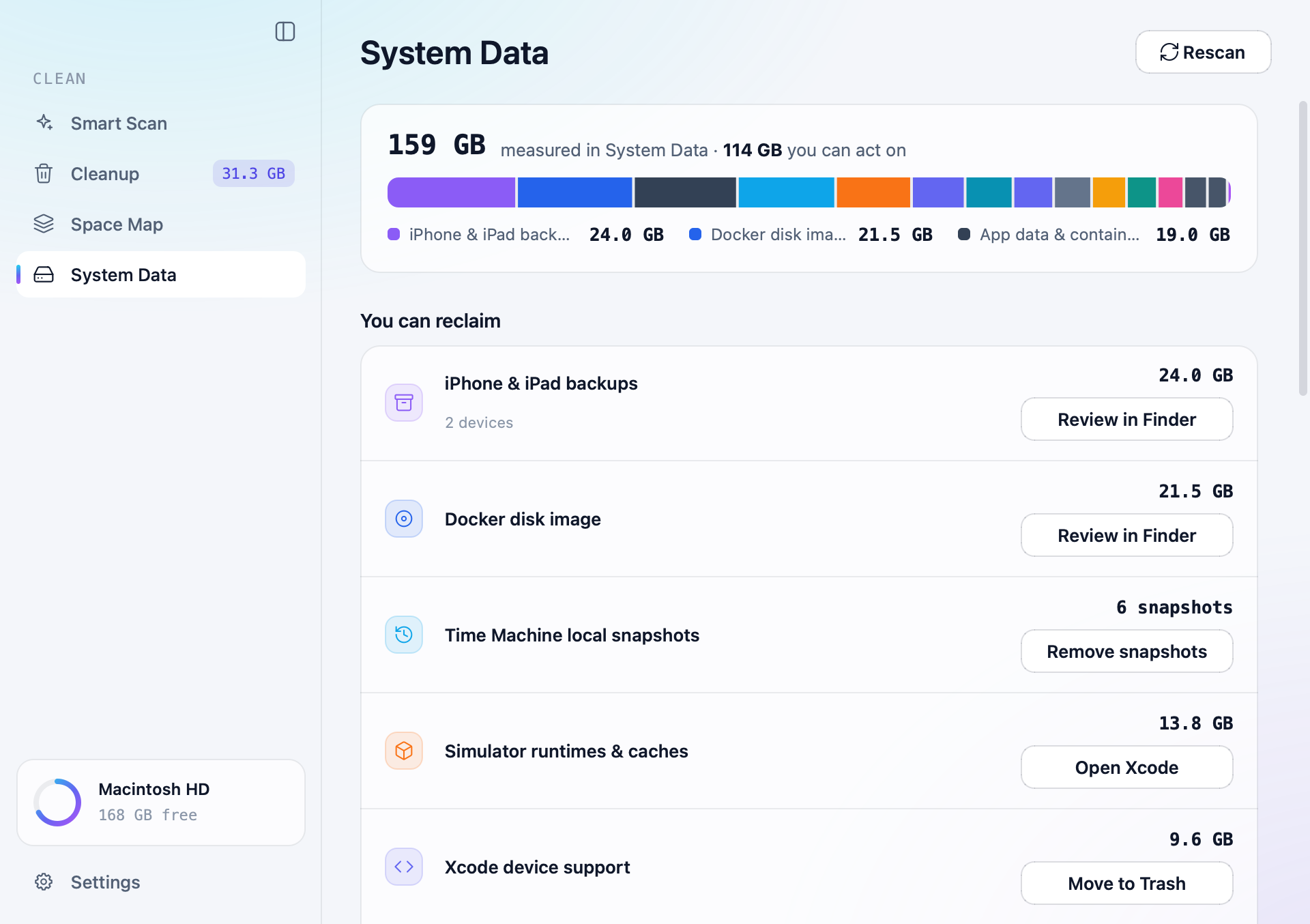
You can reclaim lists what you can act on:
- 時間機器本地快照 : Remove snapshots deletes them (macOS asks for your password). This can’t be undone, so CleanBee asks first.
- Xcode 設備支援 : Move to Trash 。
- iOS Simulator devices : deletes the simulators that are no longer available.
- Simulator runtimes & caches : Open Xcode to remove the runtimes you no longer need.
- iPhone 和 iPad 備份 , Xcode archives , Docker disk image , hidden folders, and 郵件 和 Messages attachments : Review in Finder opens them so you can decide.
- Your app caches : cleaned from Cleanup, like on any computer.
Below that, CleanBee explains the parts macOS manages itself, such as system caches, logs, swap and macOS assets. You can see their size, but there is nothing to clean there. Reclaiming System Data is part of CleanBee Pro.
7. Settings
點選 設定 at the bottom of the sidebar.
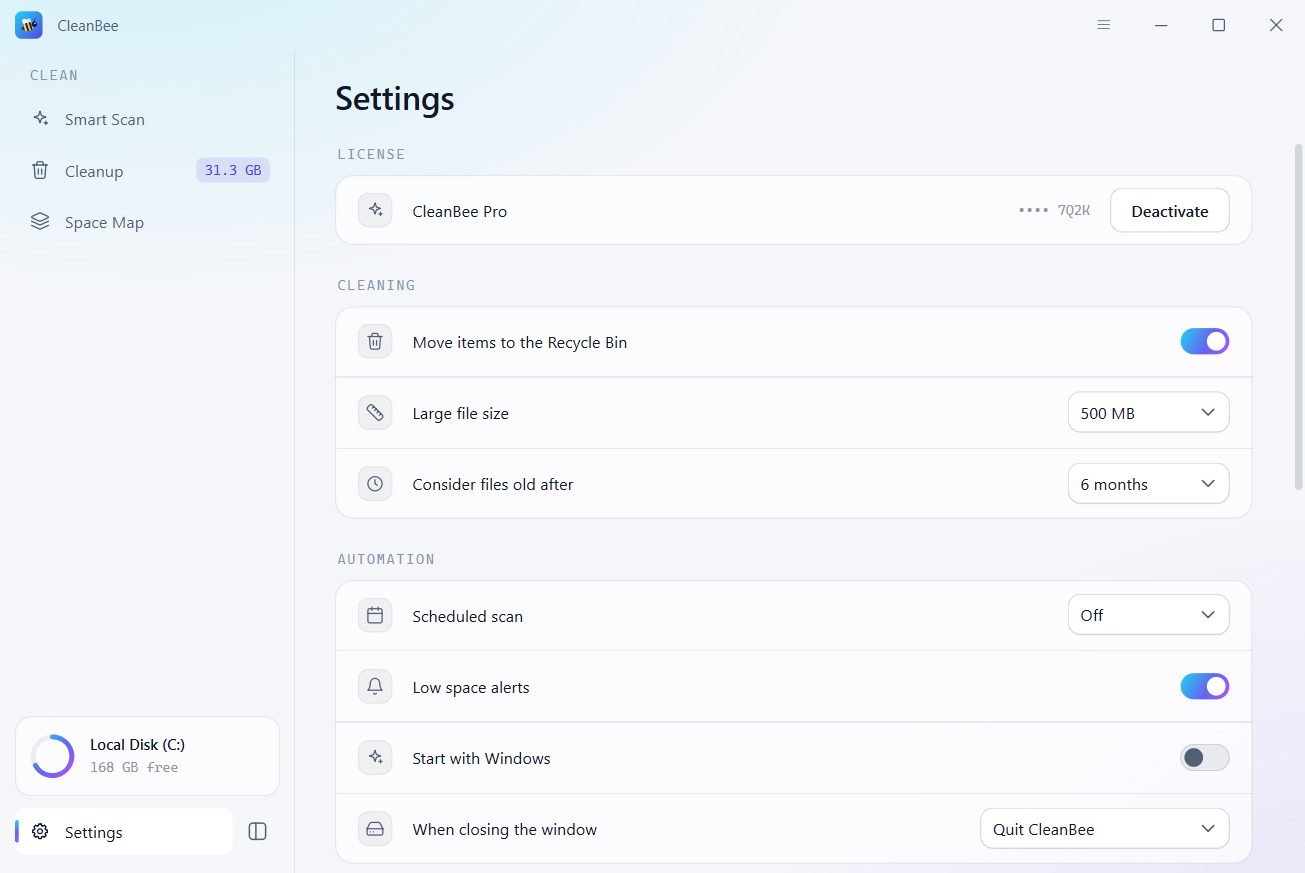
- Cleaning : Move items to the Recycle Bin (or Trash) is on by default; turn it off to delete files permanently. You can also choose which files count as large (from 100 MB) and when a file counts as old (from 3 months).
- 自動化 : a 計劃掃描 (weekly or monthly) scans when CleanBee starts if the last scan is older than that. It never cleans on its own. 低空警報 warn you when free space drops below 10%, and Open at login starts CleanBee in the background so these can run.
- When closing the window : keep CleanBee running in the tray (the menu bar on a Mac), or quit.
- Appearance : light, dark or follow the system, and the language. CleanBee speaks English, 简体中文, 繁體中文, 日本語, 한국어, Español, Français, Deutsch, Português and Русский.
- Exclusions : 點選 Add folder to add folders or patterns CleanBee should never touch. Protected system locations and protected apps are listed there too.
- Permissions & about : Full Disk Access on a Mac, administrator access on Windows, Open logs 和 檢查更新 。
8. CleanBee Free and Pro
CleanBee is free to download. The free version scans everything, shows every item and what’s in a Mac’s System Data, and cleans up to 500 MB. CleanBee Pro removes the limit, lets you move large files to the Recycle Bin or Trash from Space Map, and reclaims System Data on a Mac. It costs from $9.95 a month, or $39.95 once, with a 30-day money-back guarantee. See pricing 。
9. Register CleanBee
You get your license key by email right after buying. To activate CleanBee Pro:
- On Windows, click the menu button (☰) at the top right of CleanBee and choose Upgrade to CleanBee Pro… . On a Mac, choose CleanBee › Upgrade to CleanBee Pro… in the menu bar. You can also click Upgrade when the free version reaches its limit.
- Paste your key under Already have a license key?
- 點選 Activate . CleanBee says “CleanBee Pro is active” and the limit is gone.
To move your license to another computer, open Settings › License and click Deactivate . That frees this computer’s seat, so you can activate the key on the other one.
10. Get Help
選擇 幫助 in the menu (☰ on Windows, the menu bar on a Mac) to open this guide, the FAQ or the log folder. If something isn’t right, contact us and attach the log from Open Log Folder . It helps us see what happened.